To get a useful TikTok transcript, capture the spoken words, check them against the video, and export a format that fits your next task. Keep timestamps if you need to find a quote or make subtitles. Record visible text separately when it adds information the speaker never says.
You can do this manually by replaying short sections or with a transcription service that supports your video. A pasted URL is only the starting point: the words still need review.
Key Takeaways
- Decide whether you need speech, subtitles, or a record of the whole video before transcribing.
- Check names, numbers, negations, and the opening hook against the audio.
- Use TXT for reading and Markdown or JSON for a handoff. SRT additionally needs reviewed start and end times for every subtitle cue.
- The example below uses an original local demonstration, not a remotely fetched TikTok video.
Step 1: Define what you want to capture
Start with the output you need. A creator studying a hook needs the exact opening words and their location. A researcher may also need the source URL and a note about a chart shown on screen. Someone adding captions needs cue timings throughout the clip.
These are three different layers:
- Speech transcript: what people say, including meaningful words that never appear in captions.
- Captions or subtitles: text displayed at specific times. They may paraphrase speech, omit words, or contain errors.
- On-screen text: titles, prices, labels, comments, and other visible writing. It may never be spoken.
Do not merge all three into a single quotation. If a speaker says “try this tomorrow” while a title says “a five-minute routine,” attributing the title to the speaker changes the record.
Before proceeding, keep the video accessible, note its URL, and choose a simple convention for visual notes, such as [On-screen text: ...]. That gives you a place for information a speech-only transcription process would miss.
Step 2: Create a first draft
Your first draft should preserve the spoken sequence. You can replay the clip in short sections and type what you hear, or use a service that can process the link or an authorized local copy. If an existing caption track helps, use it as a draft and check it against the recording.
For a link-based workflow:
- Copy the video URL and paste it into the transcription input.
- Check whether the service supports that source and is available.
- Start processing only when the service can actually retrieve and transcribe the clip.
- Keep the source URL with the returned text.
Check the availability message before submitting. tokscripts can process permitted public TikTok links when its configured media and transcription services are available. Sign in for up to five successful ordinary transcriptions per UTC day; failures and existing results do not use that allowance. Instagram and YouTube need separate platform support. A recognized URL alone does not guarantee a result. The original sample is an alternative for exploring the editor, not a transcript of your pasted link.
Try the workflow: Paste your permitted link into the transcript workspace, or choose the labeled sample to practice reviewing and exporting text without submitting media.
If a link cannot be processed, you can still make a manual transcript. Replay one complete phrase at a time, add a rough timestamp, and leave a clear [unclear] marker where you cannot establish a word. Guessing produces a tidier draft and a less trustworthy transcript.
Step 3: Review the words before polishing the prose
The review pass should resolve meaning first. Listen for words that could reverse a claim or change a practical instruction: “can” versus “can't,” a price, a measurement, a product name, or a quoted phrase.
A useful sequence is:
- Replay the opening and check the exact hook.
- Check each name, number, and negative statement.
- Resolve unclear phrases with the surrounding sentence.
- Add punctuation without rewriting the speaker's wording.
- Label any separate visual observations.
Keep a distinction between a transcript and an edited script. Removing a repeated word may make an excerpt easier to read, but a polished paraphrase should not silently replace evidence you plan to quote. Save a separate edited version when your goal is a new script.
Before exporting, find one sentence using its timestamp and compare it with the video. If the timestamp drops you into a different thought, record the correction. AI-generated references are not guaranteed subtitle cue boundaries.
Worked example: Turn two segments into a usable note
Method: This walkthrough uses the site's original demonstration, approximately 31 seconds long, with six editable timestamped segments. The two supplied segments below illustrate the review method. They are sample material, not evidence that a remote TikTok URL was processed.
00:00.0–00:04.1
You don’t need a perfect morning. You just need a small place to start.

00:04.1–00:08.8
For me, that means opening the window before opening my phone.
A creator's research note could then read:
Source: original local demonstration
Opening hook, 00:00.0:
“You don’t need a perfect morning.”

Concrete example, 00:04.1:
Opening the window before opening the phone.

Interpretation:
The speaker follows a broad reassurance with a small physical action.
The quote stays exact. The second entry is labeled by its role rather than presented as another exact quotation. The interpretation stays separate from both. Do not add a claim about the clip's visual title or its performance: neither is established by these transcript segments.
Step 4: Choose the export for the next task
Export from the reviewed text so corrections carry into the file you actually use.
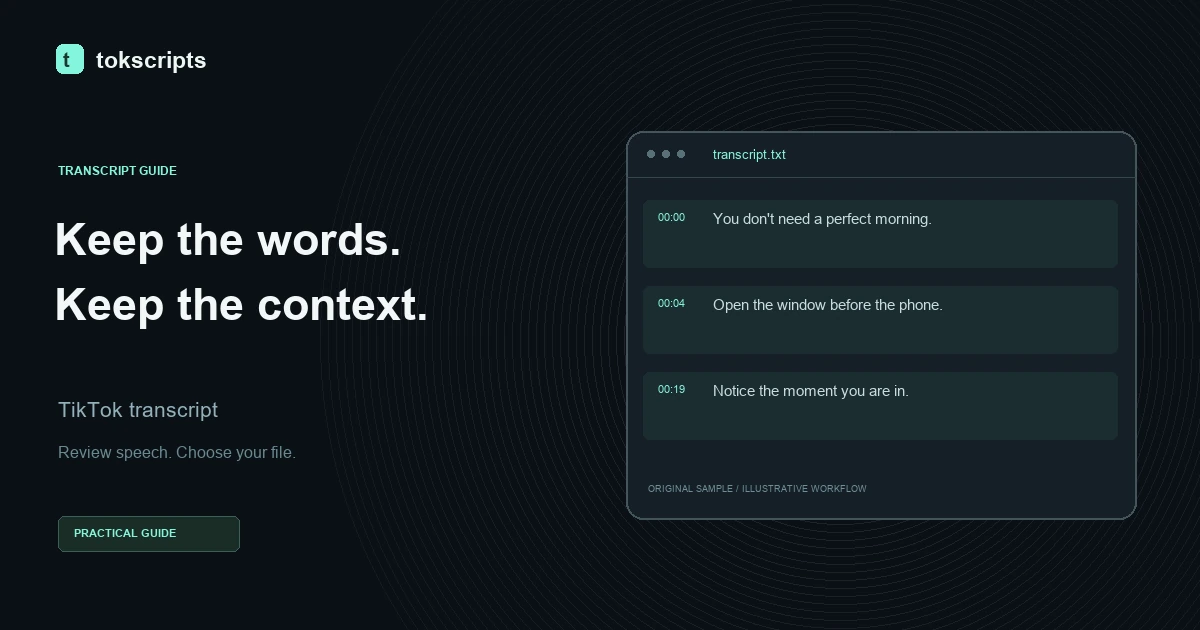
- TXT: Choose this for reading, searching, copying a quote, or pasting into notes.
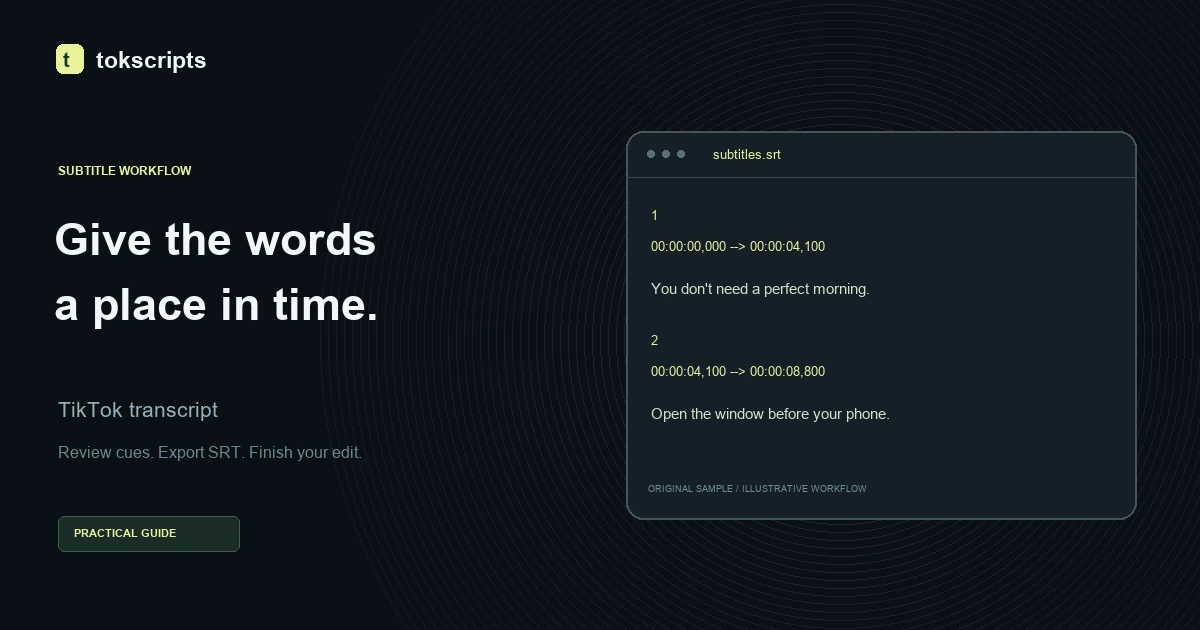
- SRT: Choose this after reviewing start and end times for each subtitle cue. Raw timestamped text alone does not supply those boundaries. An SRT file contains timed text separately from the media, as described by the Library of Congress format record.
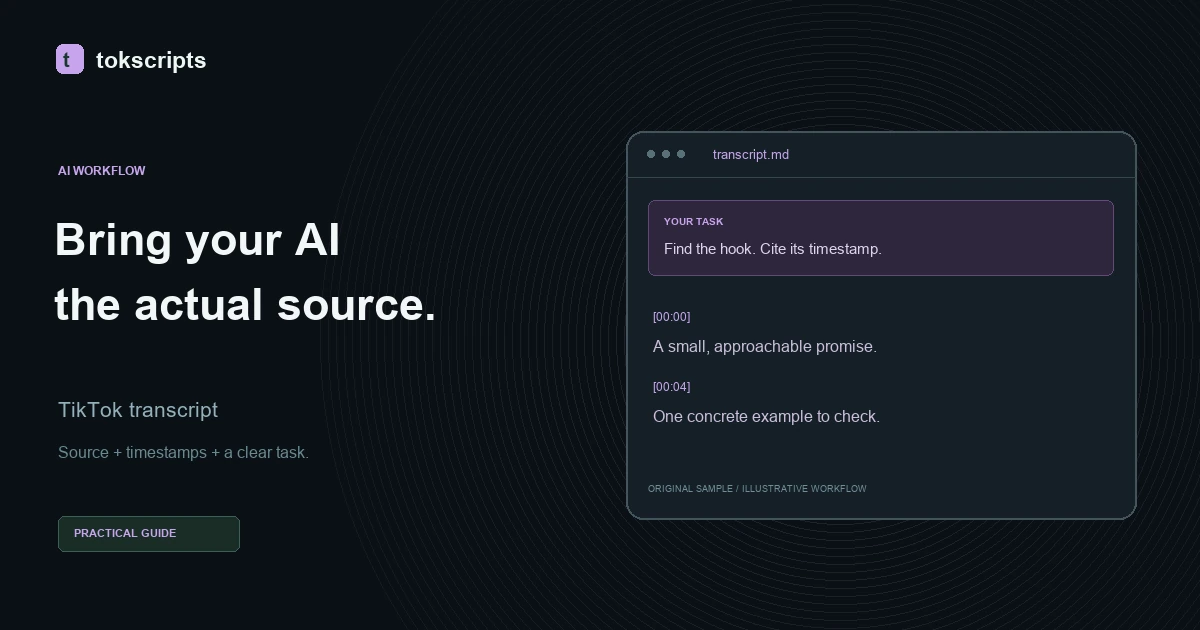
- Markdown: Choose this for a readable handoff with a source and timestamps. See the transcript workflow for AI agents.
- JSON: Choose this when your own code needs a structured export. A raw transcript contains plain and timestamped text; a segmented result can include start, end, and text fields.
For captions, follow the TikTok transcript to SRT guide and check the resulting cues in your intended subtitle player. The TikTok to SRT workspace lets you enter or review subtitle cue timings before exporting a separate SRT file.
For an agent workflow, use the file handoff guide. Public MCP and installable Skills are planned; account sign-in does not issue a personal MCP token. Downloading a file does not require a live agent connection.
Check the final file
Open the exported file before handing it off. Confirm that it contains your corrections, retains the timestamps you need, and identifies the source appropriately. Sign in and save your reviewed transcript to your account history for later review; keep your own exported copy for work you need to retain.
The finished result should let another person locate a quote and distinguish speech from your observations. That is a more useful completion test than whether the text simply looks clean.
Written by tokscripts editorial. Our editorial policy explains how examples, product limitations, and source claims are labeled.