To copy words displayed inside a TikTok video, pause on a clear frame, take a screenshot, and use your device's text recognition tool. On a supported iPhone, open the screenshot in Photos and use Live Text. On Windows 11, capture the frame with Snipping Tool and choose Text actions. Check the copied text against the image before using it.
This method is for titles, recipe quantities, prices, and other writing in the picture. For words spoken aloud, follow the separate TikTok transcript guide.
Key Takeaways
- Capture each distinct screen of writing; one screenshot only records one frame.
- Copy visible words with OCR, then check numbers, units, and reading order.
- Keep visual text and speech in separate fields when making a combined record.
Decide which text you need
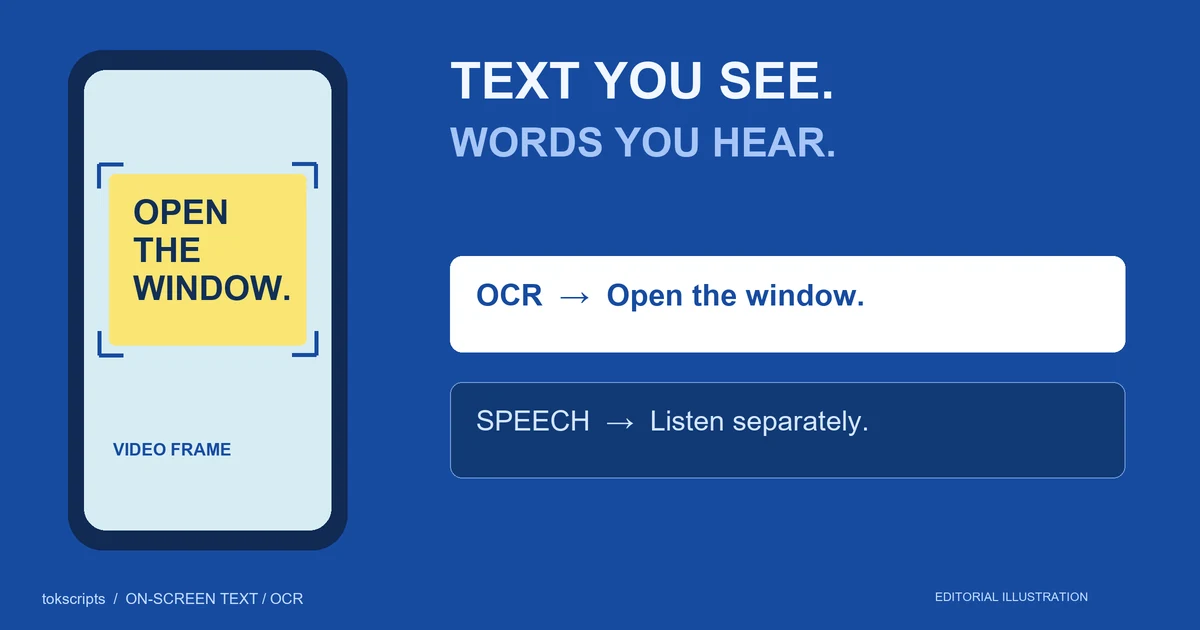
OCR, or optical character recognition, converts writing in an image into editable text. A speech transcript records spoken words. Neither should be assumed to contain everything in the other.
| Text you want | Start here |
|---|---|
| A heading, price, recipe card, or slide inside the picture | Screenshot plus OCR |
| Words spoken by a narrator | Audio transcription |
| Subtitles visible in the picture | OCR if you need the displayed wording; audio review if you need the spoken wording |
| The description below the post | The post description itself |
For example, a speaker can say “Use this amount” while the screen shows “150 g.” The transcript alone cannot supply that quantity. Capture the frame if the quantity matters to your notes.
Copy TikTok text on an iPhone
Use a screenshot in Photos so the workflow does not depend on text selection inside TikTok itself.
- Pause the TikTok when the complete line or card is visible.
- Take a screenshot using your iPhone's screenshot controls, then open it in Photos.
- Touch and hold a word in the screenshot. Adjust the selection handles to include the writing you need.
- Tap Copy, then paste into Notes or another text editor. You can also tap the Live Text button to highlight detected text.
If selection is unavailable, check Settings → General → Language & Region → Live Text. Apple documents support on iPhone XS, XR, or later with iOS 15 or later; recognizing text directly in a paused video requires iOS 16 or later. Language and region availability varies. See Apple's Copy and translate text from photos on your iPhone or iPad for requirements and controls.
Keep the screenshot until you finish checking the pasted result. For changing captions, return to the video and capture the next distinct passage rather than repeatedly copying the same line.
Copy TikTok text on Windows 11
Open the video on your PC and pause on the frame you need. This path uses the screenshot editor rather than a video download.
- Press Windows + Shift + S and select a rectangular area around the visible writing.
- Open the captured image in Snipping Tool.
- Select Text actions to recognize the writing.
- Select the desired passage, or choose Copy all text, then paste it into a text editor.
Microsoft's Use Snipping Tool to capture screenshots documents this OCR workflow and states that recognition runs locally on the device. These instructions target Windows 11's Text actions feature; the older Windows 10 screenshot interface should not be assumed to include it.
Crop your capture to the relevant card when possible. If the screenshot also contains comments, usernames, or interface labels, copying all text may bring those into your notes. Keep the full original frame separately when its context matters.
Worked example: a recipe card and a spoken instruction
The following is a constructed teaching example, not a captured TikTok or a device test. The OCR error is illustrative; it is not measured output from either tool above.
Imagine a frame at 00:06 with this card:
PANCAKES
150 g flour
1.5 tsp baking powder
200 ml milk
The speaker says: “Mix the dry ingredients first, then add the milk.” Your first copied note might contain 15 tsp baking powder. Comparing it with the screenshot reveals a missing decimal point.
Record the corrected result like this:
Source: [save the video URL here]
Frame: 00:06; screenshot saved with these notes
Visible text: PANCAKES; 150 g flour;
              1.5 tsp baking powder; 200 ml milk
Speech: "Mix the dry ingredients first, then add the milk."
Correction: OCR note changed from 15 tsp to 1.5 tsp
            after checking the frame.
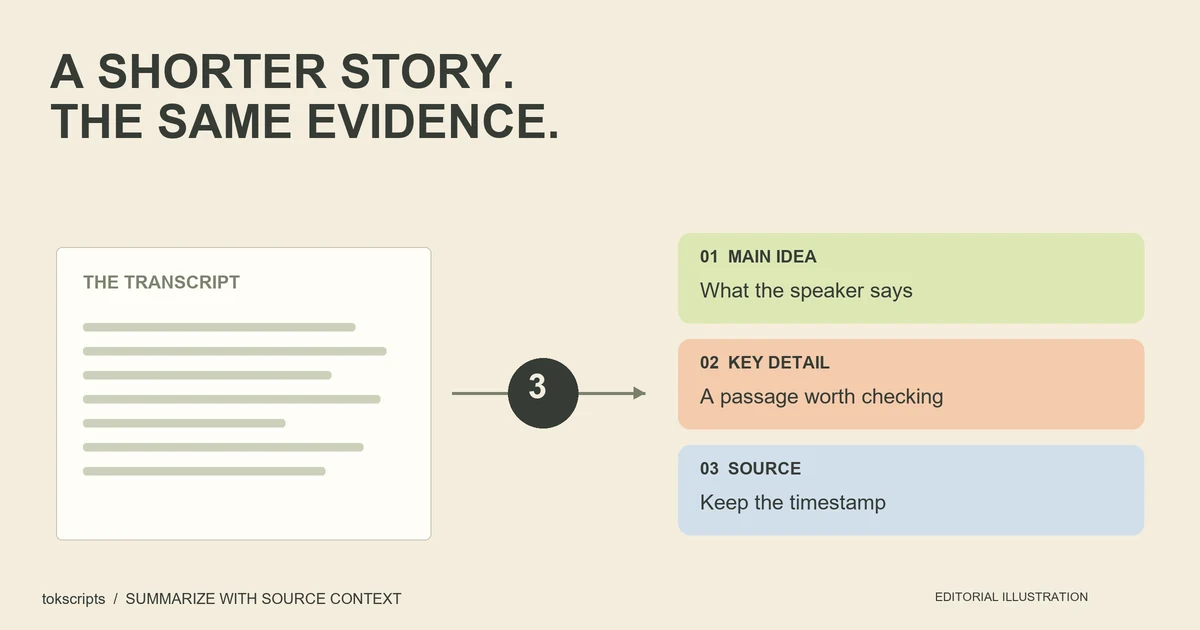
This record preserves the quantities and the preparation order without attributing the card's wording to the speaker. It also shows what was corrected. If you later summarize the transcript, include the visual field separately so the summary can identify where each detail came from.
Fix missing or scrambled text
Return to the source frame before editing the output. Use this order:
- Check the frame. Wait until an animation finishes and the whole phrase appears.
- Check the capture. Avoid cutting off the start or end of a line. For a dense card, capture smaller sections as well as the full card.
- Check the pasted text. Compare decimals, currency symbols, units, URLs, and line order with the image.
- Mark unresolved words. Write
[unreadable]when the source itself does not show enough detail.
Do not “repair” a blurry quantity by choosing the value that sounds plausible. A missing decimal changes the meaning. For a short phrase, manual copying with a second visual check may be the most practical fallback.
If you need the spoken words too
Use the transcription tool for the speech branch, then review its output against the audio. The OCR steps above remain a separate task for writing that appears only in the video. A successful speech transcript does not establish that visual cards were captured.
For research into an opening line, keep the first frame beside the spoken opening before analyzing the TikTok hook. A visual headline can supply context the spoken sentence leaves out.
Common questions
Can I copy all the on-screen text from one screenshot?
Only the text visible in that frame. For a sequence of cards or changing captions, capture each distinct passage and keep its timestamp or sequence number.
Why does my transcript miss a title shown in the video?
The title may never be spoken. Add it as a checked visual-text note rather than inserting it into a verbatim speech transcript.
Do I need to download the video first?
The screenshot workflows here do not require a video download. You need access to view and pause the relevant frame. A screenshot does not restore words hidden behind other elements or absent from that moment.
Can I translate the copied text immediately?
You can use the copied text as translation input, but check the original extraction first. Keep the original wording beside the translation so names, quantities, and uncertain characters remain traceable.
Published October 22, 2026. By tokscripts editorial. Prepared with AI assistance and reviewed before publication. Device steps were checked against the linked official documentation; they have not been verified through hands-on device testing for this article. The worked example is constructed. The cover is an AI-generated concept illustration, not a device screenshot. About the publisher.
Contact the publisher to report an error or a changed interface.