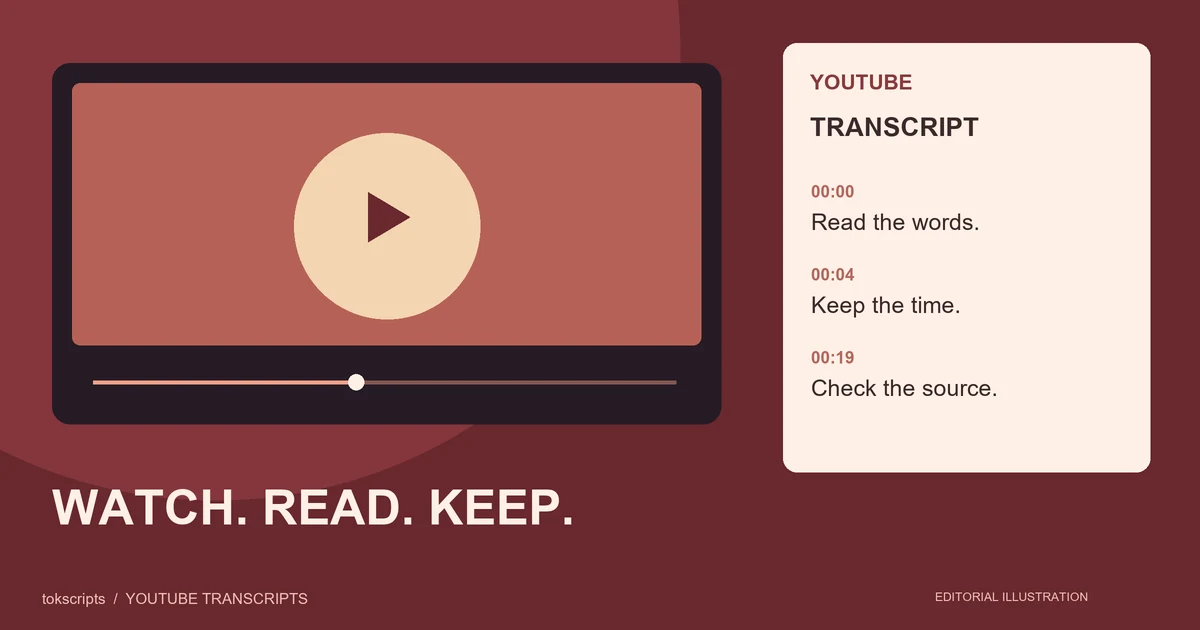
To get a YouTube transcript, open the video's description and look for Show transcript when captions are available. For downloadable text and saved results, paste the video link into a YouTube transcript generator. Review the words against the recording, retain timestamps if you need source references, and export the format your next task requires.
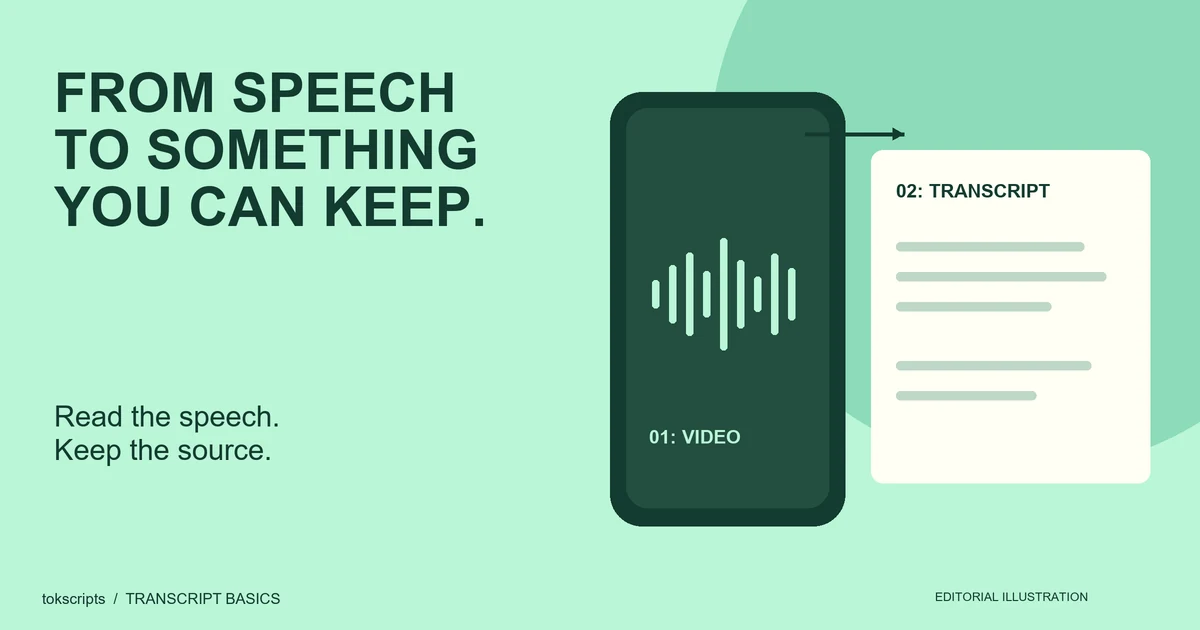
A YouTube transcript is a text version of speech in a video. It can help you find a passage, study a tutorial or reuse your own spoken ideas. It does not necessarily capture on-screen code, charts or demonstrations that the speaker never describes.
Key takeaways
- Start with YouTube's native transcript panel when a caption track is available.
- Use a generator when you need a file, account history or a recording-based fallback.
- Check names, numbers and negative statements before quoting a transcript.
- A timestamped transcript and an edited subtitle file are different deliverables.
Where do I find the transcript on YouTube?
YouTube's official transcript instructions say that videos with captions have a full transcript view. Open the description, select Show transcript, and select a line to jump to that part of the video. The exact controls can differ between devices.
This is a useful first step if you only need to read a passage or locate where something was said. You do not need to start with another service simply to check whether the source already provides text.
If you cannot find a transcript, first confirm that you opened the specific video rather than a channel or playlist. Then check whether captions are available. A missing transcript panel is not proof that the video contains no speech; it means that this text route is not currently available to you.
Native transcript or YouTube transcript generator?
Choose the route based on the result you need, rather than assuming every video must be processed again from audio.
| Route | Best suited to | Limitation to check |
|---|---|---|
| YouTube transcript panel | Reading along and locating a passage | Requires an available caption track |
| Transcript generator using platform text | Getting readable files and saved results | The provider must be able to retrieve the track |
| Speech recognition from a recording | Videos without a usable text track | Requires accessible audio and additional processing time |
| Manual transcription | A short passage you can listen to and verify yourself | Takes longer and still needs a review pass |
Native captions are not automatically error-free. YouTube's automatic caption guidance discusses recognition issues caused by factors such as pronunciation, accents, dialects and background noise. Treat automatic text as a draft when a detail matters.
How to convert a YouTube video to text with tokscripts
The YouTube transcript generator accepts a specific video link and returns plain and timestamped text when processing succeeds. The current link workflow supports recorded YouTube videos up to 30 minutes, including individual Shorts, subject to source access and media limits.
- Copy the video link. Use a standard watch URL, a youtu.be share link or an individual Shorts link. Channel and playlist URLs are not part of this single-video workflow.
- Paste it into the tool. Sign in to continue with the same link. No YouTube account connection or browser extension is required.
- Wait for the source text. The service first checks for a usable platform transcript. If none is available, it tries speech recognition on an accessible recording.
- Review both text views. Use plain text for reading and the timestamped version to locate passages in the source.
- Copy or export. Download TXT, Markdown or JSON, or copy the text you need. Completed results are saved to your account history.
Free accounts receive five successful transcriptions per UTC day across supported sources. Failed jobs and reopening a saved result do not consume another free slot. Creator adds AI writing and translation; see current plans for payment details and current limits.
The dated platform processing reference documents this product route and the current source limits. It describes the implementation; it is not a speed or accuracy benchmark.
Why can one transcript take seconds and another take longer?
An available platform text track can be retrieved without downloading the full video and recognizing its speech again. If the text track is unavailable, the recording route adds media retrieval and model processing. Network conditions, video duration and source restrictions affect the wait.
Do not interpret a fast result as proof of accuracy or a slow result as proof that the model cannot handle the video. They may be using different source routes. A completed transcript still needs a check against the recording, and some restricted videos cannot be processed at all.
Review a passage before using it
Replay the opening, then check every name, number, unit and negative statement that matters to your task. “Do not replace the file” and “replace the file” can differ by a single missed word. Add punctuation for readability without silently rewriting the speaker's meaning.
The example below is original illustrative material, not an actual YouTube transcript or a claimed live test. It shows how to keep evidence separate from interpretation.
00:00:04
Before updating the spreadsheet, export a copy of the original file.

00:00:12
Change one formula first. Compare its result with the original row.

00:00:23
If the result matches, apply the formula to the remaining rows.
| Research note | Supporting passage | What remains unknown |
|---|---|---|
| Preserve the original | 00:00:04: export a copy | Which spreadsheet product or export format is intended |
| Test one change | 00:00:12: change one formula | Whether the formula is correct for every row |
| Expand after checking | 00:00:23: apply to remaining rows | Whether the other rows share the same structure |
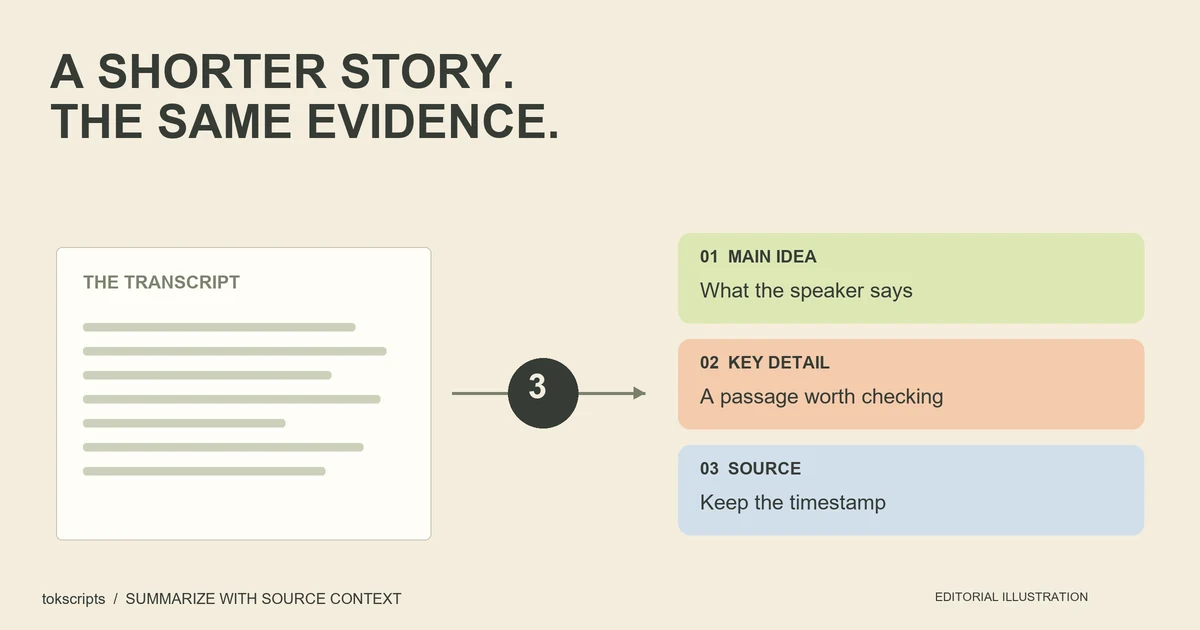
The transcript supports a sequence of actions. It does not establish a universal spreadsheet procedure. If you turn it into study notes or supply it to an AI assistant, keep those missing conditions visible instead of filling them with guesses.
Which YouTube transcript format should I download?
Use TXT for reading, notes and simple copy-paste. Choose Markdown when you want a readable handoff with source context. Choose JSON for your own code or an integration that needs structured data. Check the exported file rather than assuming a format name guarantees the fields your next tool expects.
For a plain-text download, the result panel exports the words from the selected text view. Here is a representative TXT specimen using the original example above; it is not a captured export from a real YouTube video:
Before updating the spreadsheet, export a copy of the original file.

Change one formula first. Compare its result with the original row.
A JSON download for a plain-and-timestamped result includes title, source, duration, plainText and timestampedText. That is different from an export made from a segmented-only result, which carries a segments array. The processing reference records this distinction.
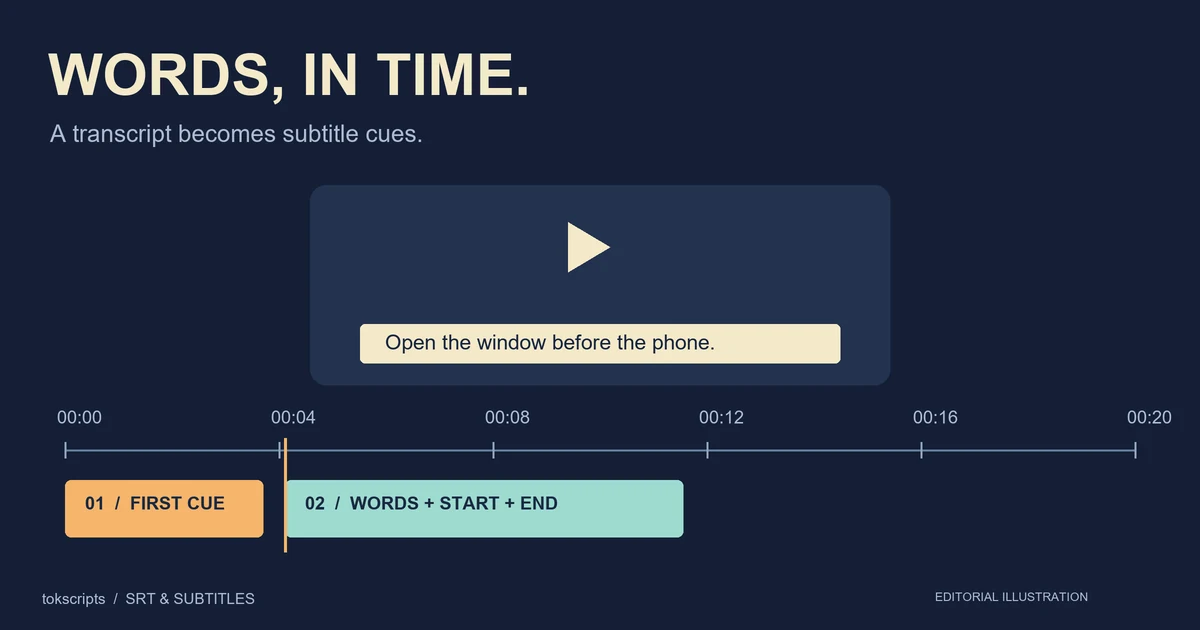
A timestamped transcript is not automatically a finished subtitle file. SRT needs numbered cues with start and end times; the Library of Congress format description documents that structure. Review cue boundaries and synchronization before importing subtitles into an editor. The subtitle editor can help with existing SRT files.
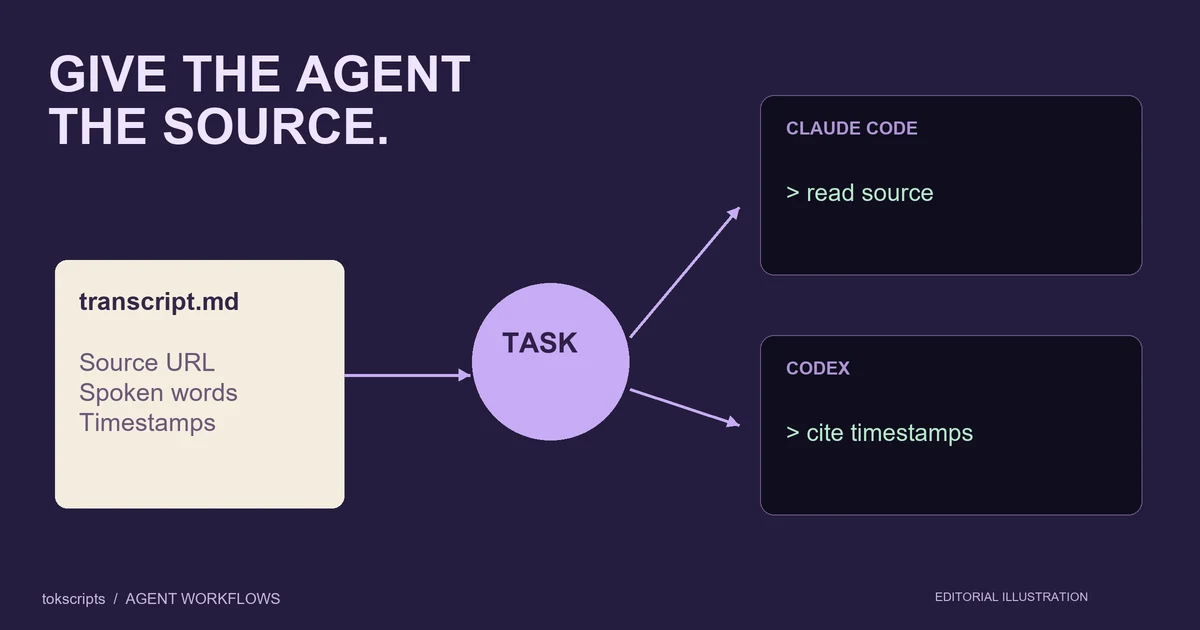
For an AI workflow, pass the reviewed source text and one defined task, such as identifying key points with timestamp references. Ask the assistant to use only supplied material and mark missing information. A transcript provides the words, not evidence of unseen visual details. The file and MCP setup guide explains the available handoff options and authentication limits.
What if captions are missing or the video is restricted?
If no usable platform transcript exists, speech recognition may still work when the recording can be retrieved. It is not guaranteed: private content, source-platform sign-in requirements, unavailable media or poor audio can stop processing.
For your own material, consider uploading the original recording through Video to Text, within the displayed file-size limit. For a short passage you can access, manual transcription is another option. Mark unclear words and replay the source rather than inventing a tidy sentence.
External YouTube instructions and caption guidance linked above were consulted on October 22, 2026. The source interface may change.
Common YouTube transcript questions
Do YouTube Shorts work?
The tokscripts link workflow accepts individual Shorts links as well as standard video URLs. A valid URL does not guarantee that the processing service can retrieve the video or its text track.
Can I get a transcript without timestamps?
Yes. Use the plain-text result for reading or copy-paste. Keep the timestamped version separately if you may need to find a quote later.
Does the transcript include the text on slides?
Not necessarily. A transcript represents speech or the available caption track. Add separately labeled visual notes for charts, on-screen code and instructions that were never spoken.
Can I reuse the transcript as a new script?
For your own content, a reviewed transcript can be a useful draft source. Keep an exact source copy and a separate rewritten version so a new sentence is not mistaken for a quotation. Check permissions before reusing another creator's material.
Get the words, then choose the next task
Use YouTube's transcript panel to inspect an available track, or open the YouTube transcript generator for the download-and-history workflow. If your source is a Reel instead, follow the Instagram Reel to text guide, which explains the difference between spoken words, post captions and visible overlays.
Written by tokscripts editorial, the product team responsible for these guides, product-workflow checks and corrections. No independent expert review or named professional credentials are claimed. Product steps and limits were checked against the local implementation on October 22, 2026. The example is original teaching material, not a live-video benchmark. See the editorial policy for how sources and examples are labeled.